For trainers: connect Stripe and set up payouts. For clients: save a card, manage permission for trainer charges, and pay requests. Choose your role to open the relevant steps.
Screenshots show a verified test flow (Sandbox), with anonymized data. Names and contact details are fictional examples, not values to enter. Use your own details in live Stripe. Screens and their order can vary by country, app version and Stripe requirements. Displayed amounts and fees are not current pricing.
I’m a client
Manage your payments
Saving a card and allowing your trainer to charge it are separate actions. You can pay requests yourself without granting that permission.
01
Open Payments & billing
Sign in to your SERHILL client account. In the app, open My Products → Payments & billing. On the website, look for My Products & Billing → Other services & requests.
Find Card for your trainer and check Merchant: this identifies the business receiving your payments.
If the section is unavailable, ask your trainer to check their Stripe connection or contact support.
02
Save a card
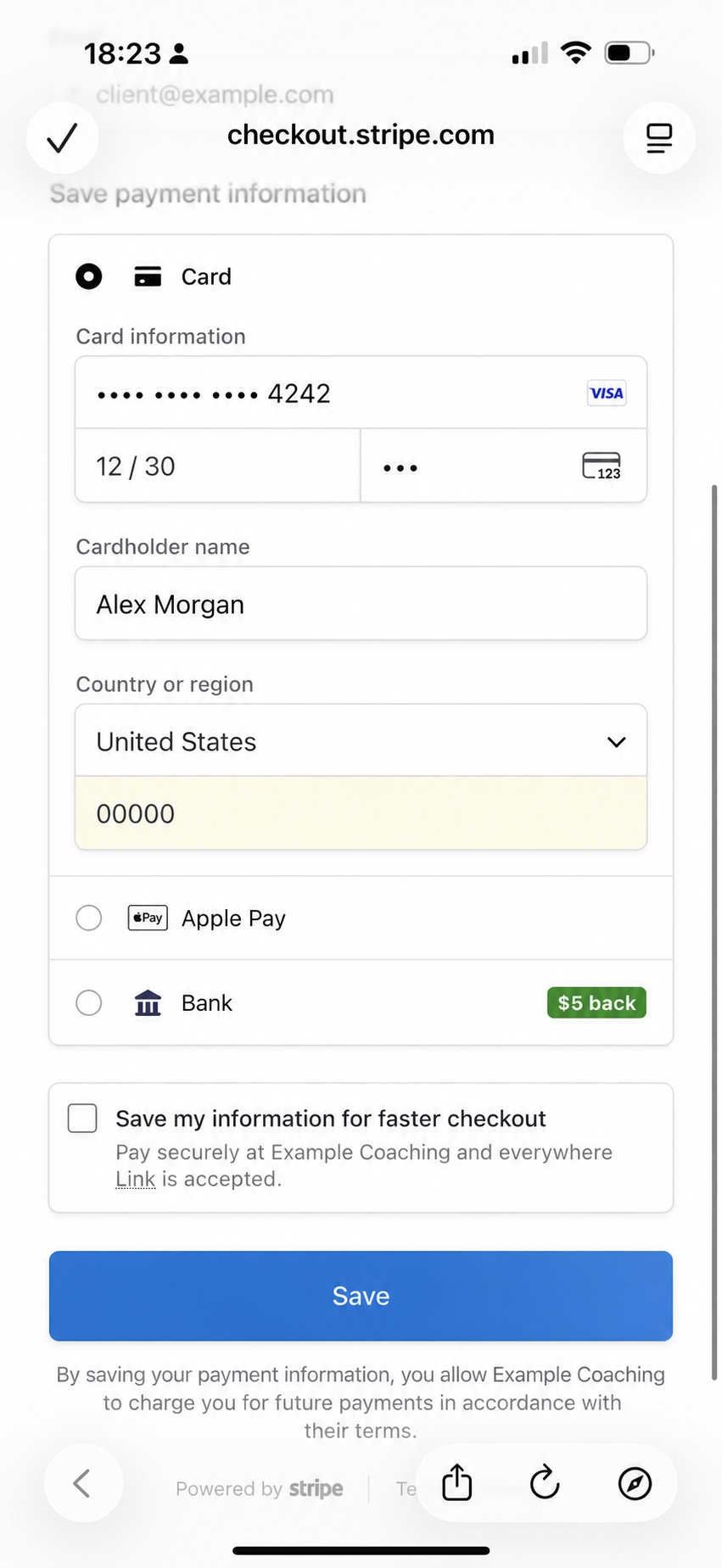
Select Save card. If a separate card-storage consent is shown, read and confirm it. A secure Stripe page opens.
Check the merchant. Enter your own card and billing address directly in Stripe.
Select Save and complete any bank authentication requested.
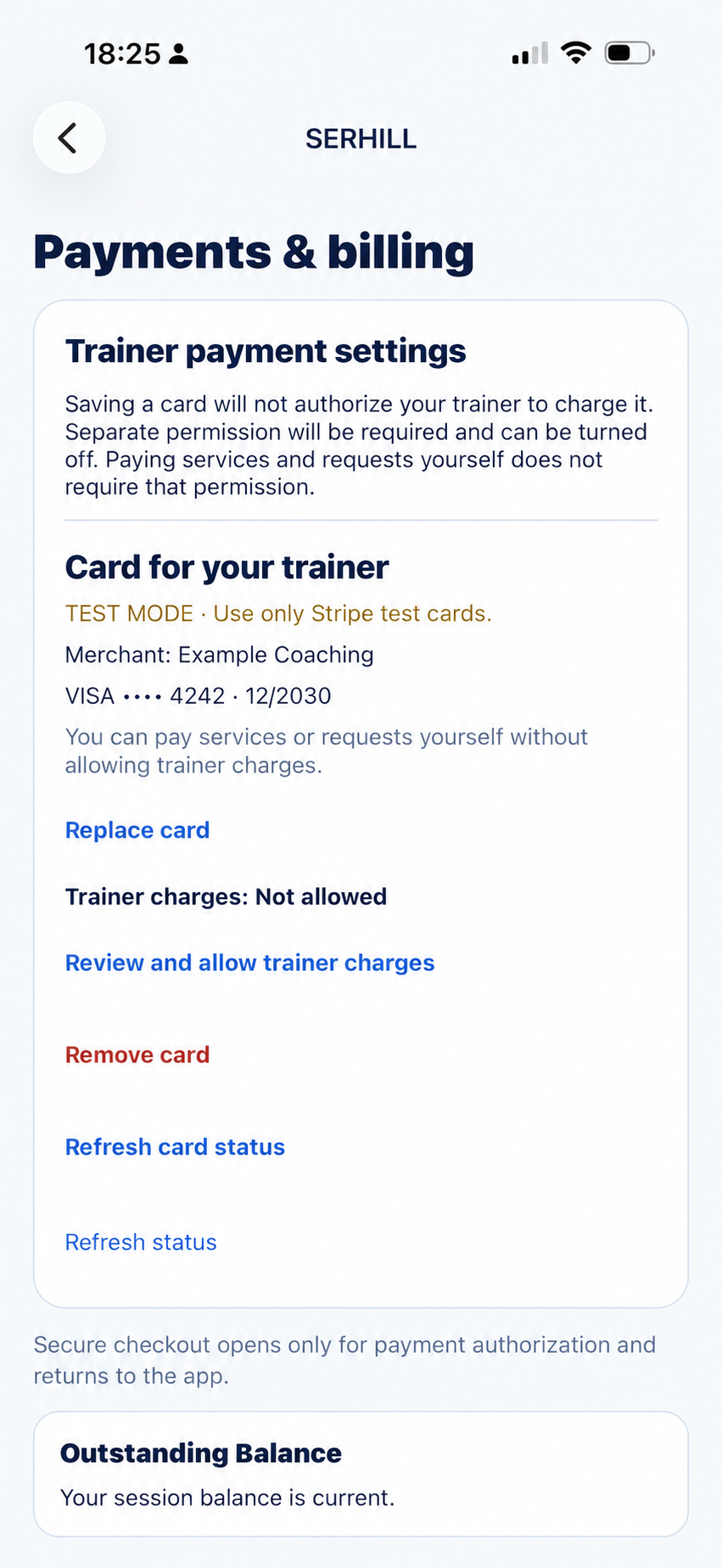
Return to SERHILL and select Refresh card status. Check that a masked card appears, for example Visa •••• 4242.
Stripe card setup with fictional example details.Enlarge screenshot (new tab)
03
Replace or remove a card
Open the same Card for your trainer section.
Replace card: complete the new card setup in Stripe, return and refresh. Check the new last four digits and the current trainer-charge permission.
Remove card: read the removal confirmation, select the acknowledgement if required, and confirm. Refresh: you should see No saved card and future trainer charges should be disabled.
Saved card, Replace card, Remove card and separate charge permission.Enlarge screenshot (new tab)
04
Allow trainer charges
Trainer charges: Not allowed means saving the card alone has not authorized your trainer to charge it.
Select Review and allow trainer charges.
Read the merchant, terms and consent: charges for completed sessions based on the agreed session price and unpaid balance.
If you agree, select the consent checkbox and Allow trainer charges. Check that the status becomes Allowed.
05
Revoke permission
In Payments & billing, select Revoke permission and confirm if prompted. Refresh the status and check that Trainer charges reads Not allowed.
This stops new trainer-initiated charges. It does not cancel a payment already submitted or erase an outstanding balance. You can still pay services and requests yourself.
06
Pay a request
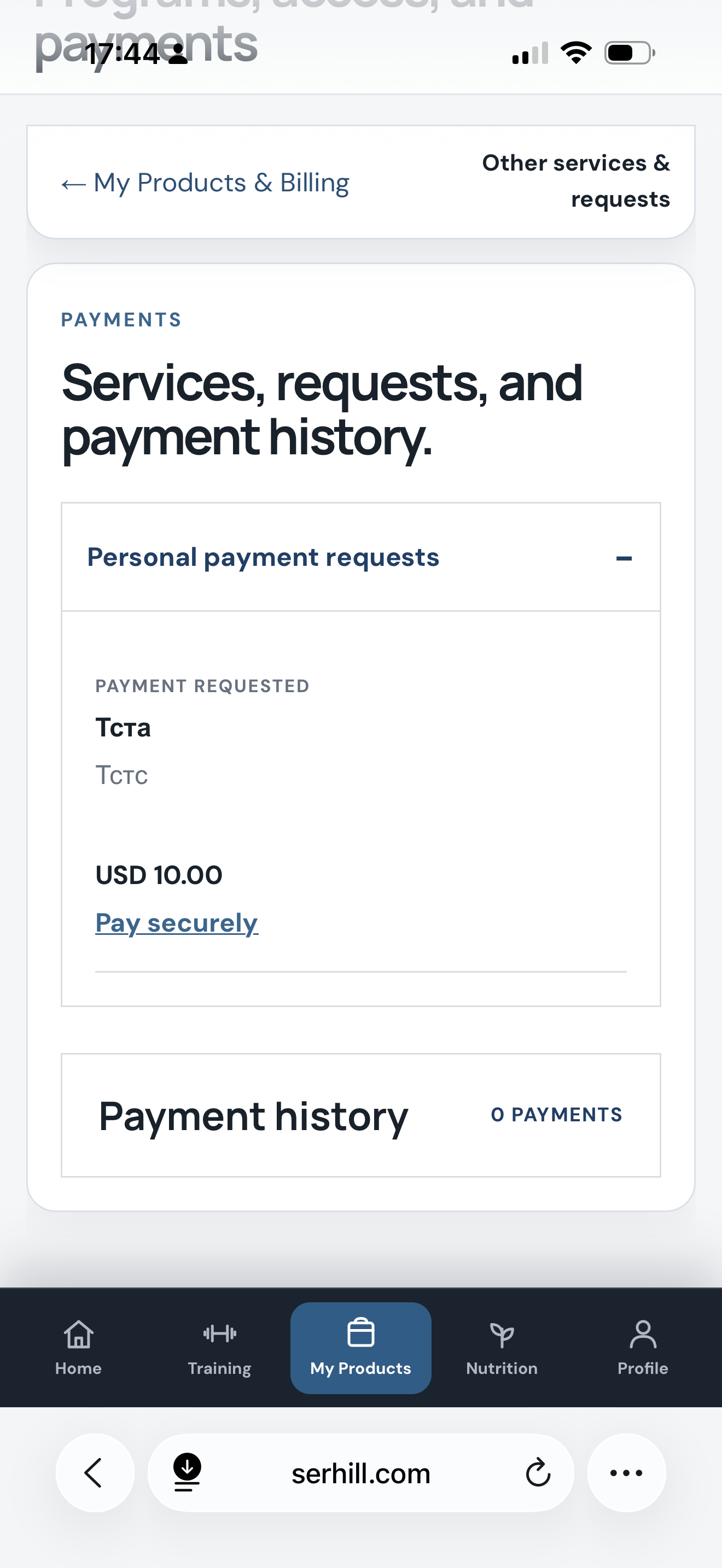
Open Payment Requests / Personal payment requests.
Check the service description, amount and currency. Contact your trainer before paying if anything is wrong.
Select Pay securely. In Stripe, check the merchant and total again.
Pay and complete bank authentication (3D Secure) if requested.
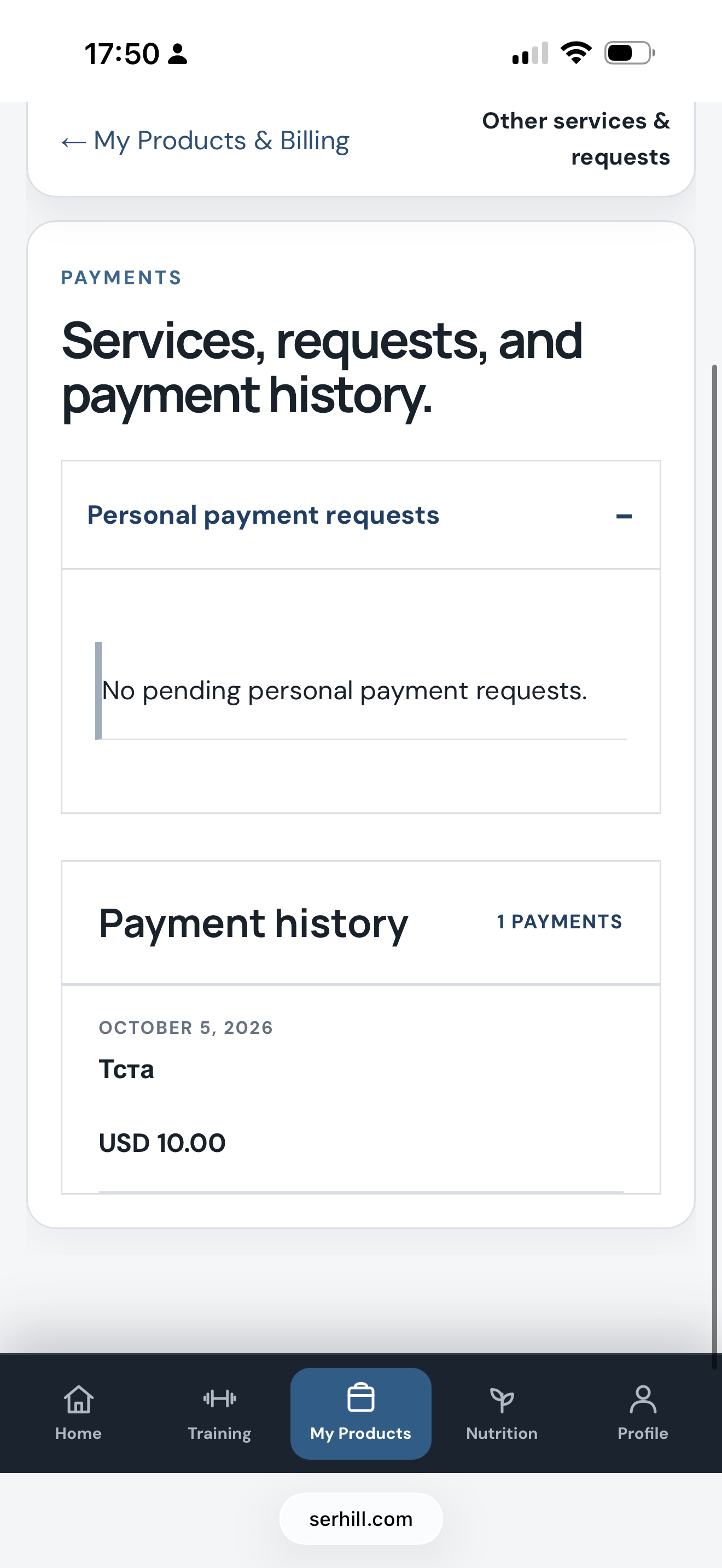
Return to SERHILL and refresh. A successful payment should appear in Payment history and the request should no longer be unpaid.
Payment request: amount and Pay securely action.Enlarge screenshot (new tab)
07
Check history and pending operations
In Payment history, check the amount, date and service. If your bank shows a payment but the history has not updated, refresh and contact support with the date and amount.
Card confirmation is pending is not confirmation that your card was saved. Return from Stripe and use Refresh card status. If The payment method could not be loaded persists, share the error text with support.
After successful payment: no pending request and an entry in history.Enlarge screenshot (new tab)
This flow is for independent trainers. Onboarding creates a separate Stripe account for your work through SERHILL; existing business information can be reused. If SERHILL says a separate connection is not required, confirm your status with support.
01
Request a connection
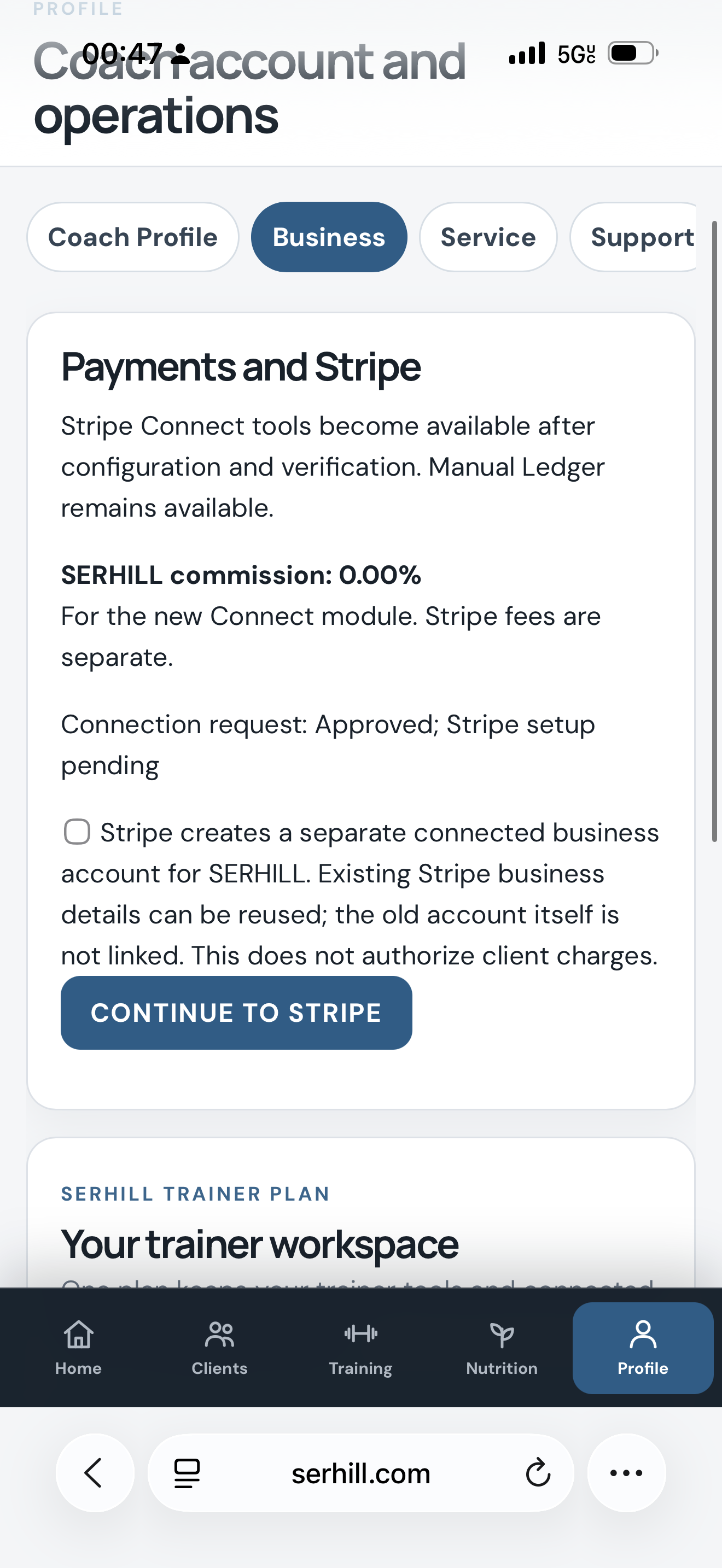
Open Profile → Business → Payments and Stripe. Submit a connection request if you have not already done so, and wait for Approved. Contact SERHILL if it is pending or declined.
Read the displayed SERHILL commission and terms. Stripe fees are separate. Values in these screenshots are testing examples.
Payments and Stripe: request approved, Stripe setup still pending.Enlarge screenshot (new tab)
02
Verify your email and country
Use an address you can reliably access for Stripe login email. Check the spelling before continuing.
Request an email verification code, retrieve it from your inbox and verify the address in SERHILL. Wait for Email verified.
Choose your actual business / residence country. Do not copy United States from a screenshot: the country cannot be changed in SERHILL after the connection is created.
Read the separate connected-account acknowledgement, accept it and select Continue to Stripe.
03
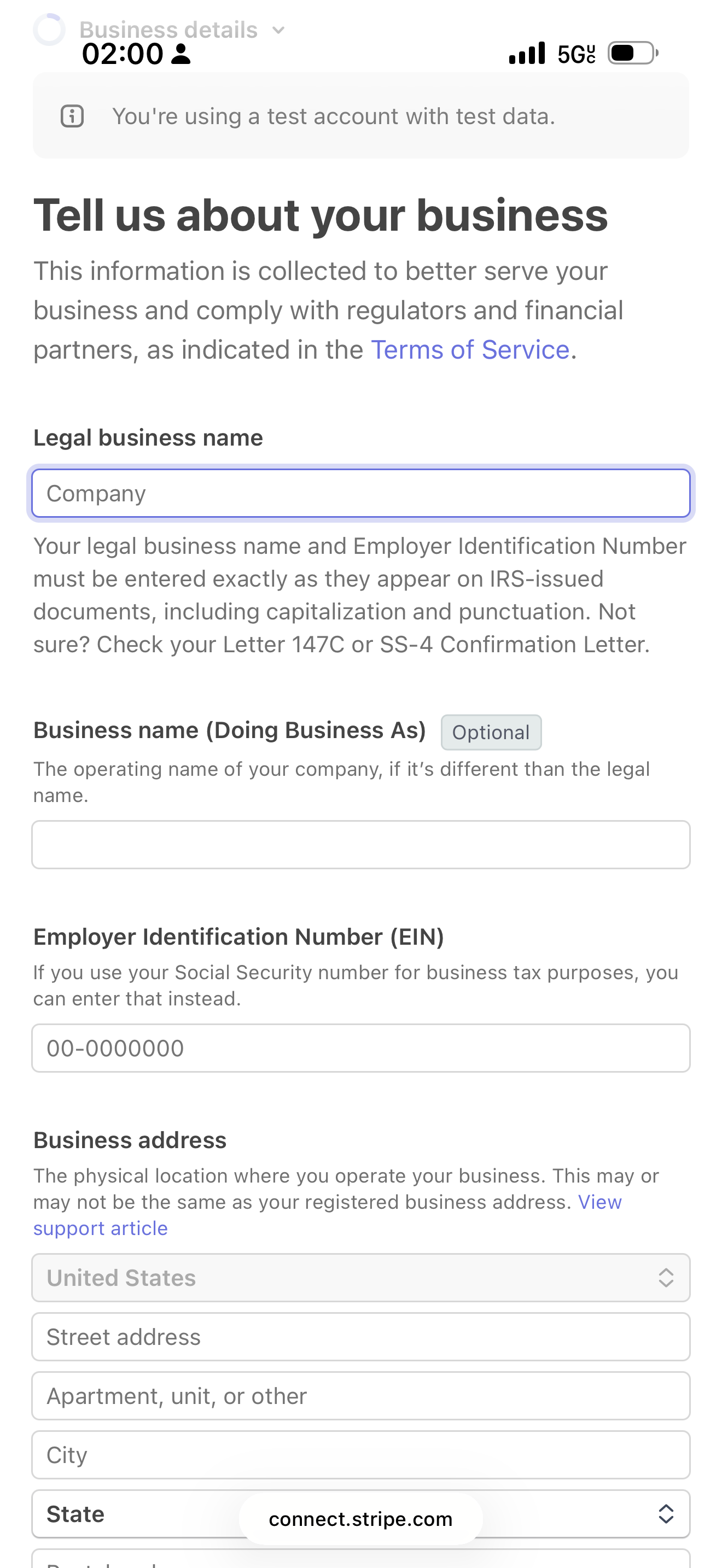
Enter your business type and details
Complete the sign-in or registration offered by Stripe. Enter passwords and set up account security only in Stripe.
Choose the Business type that matches your actual activity. If Stripe asks for Business structure, use your own legal structure rather than copying an example.
Enter Legal business name and Business name (Doing Business As) if applicable.
Provide the requested tax identifier and actual Business address as shown in your documents.
Add your phone, website or service description if Stripe asks for them. Review before selecting Continue.
Business details fields: use your own business information.Enlarge screenshot (new tab)
04
Verify the account representative
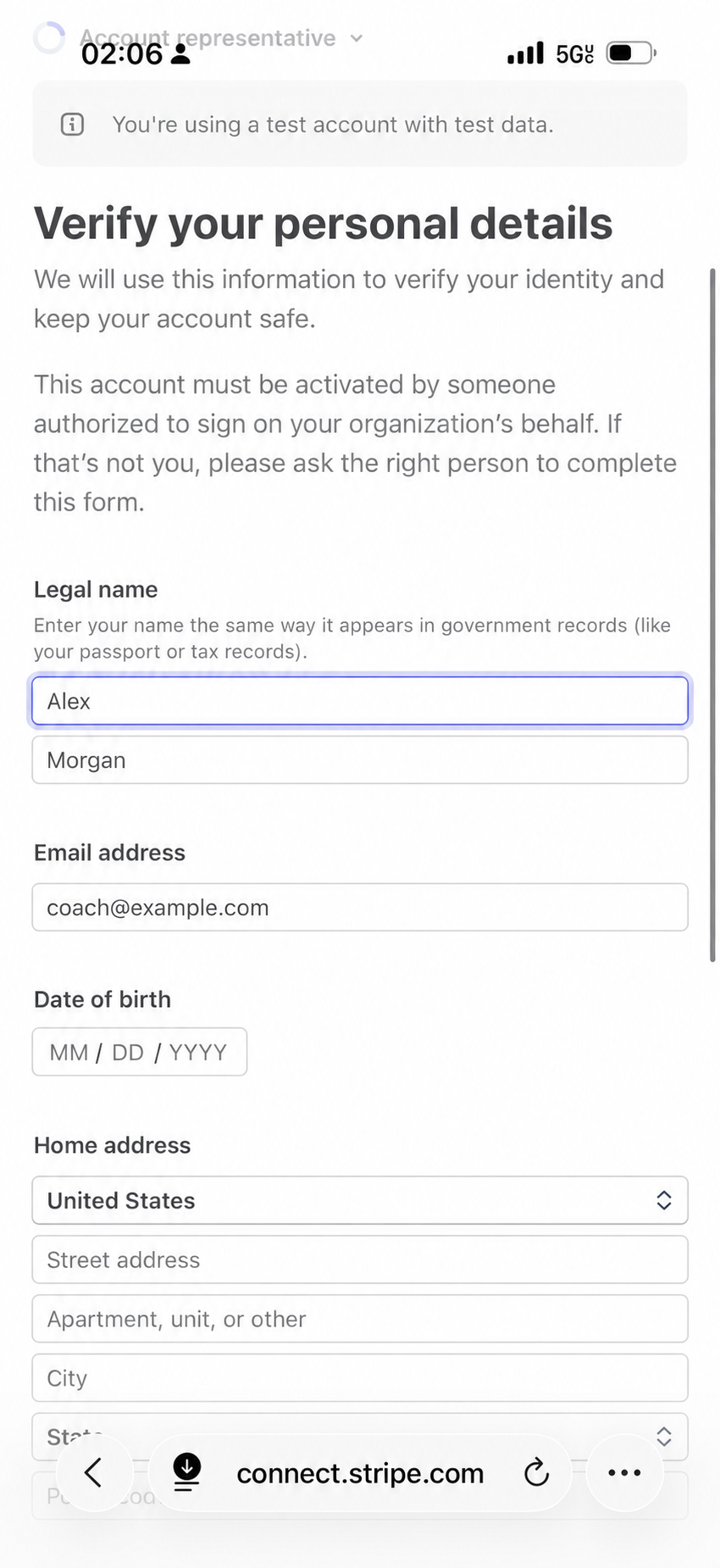
Under Account representative, identify the person authorized to act for the business. Their name, date of birth, address and other requested details must match their documents.
If Stripe requests ownership information or supporting documents, complete those steps in Stripe. Requirements vary by country and business type.
Representative verification: Alex Morgan and coach@example.com are fictional.Enlarge screenshot (new tab)
05
Connect a payout account
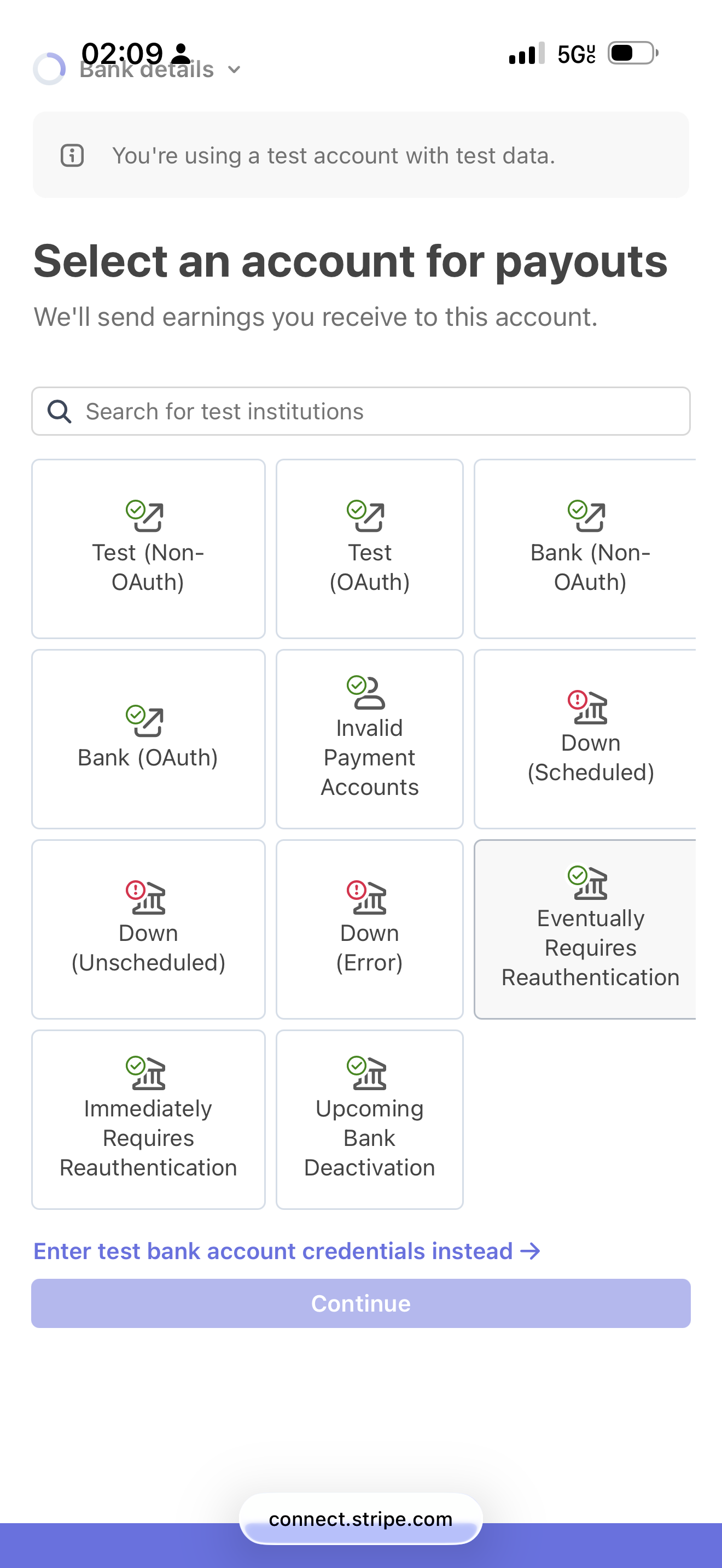
In Bank details, choose your bank and complete the offered secure connection. If manual entry is available, provide your own payout account details.
Choose the intended account if your bank returns several accounts.
Check its currency and last digits.
Select an available payout schedule and continue.
Payout bank selection: Sandbox test institutions.Enlarge screenshot (new tab)
06
Review public details and optional services
In Public details, check your statement descriptor and the customer-facing support phone, email and address if requested. Use recognizable, current business information.
Stripe may offer Radar, Climate or Tax. Read each description, price and available choices. Decide deliberately; selections in the test flow are not recommendations to activate a paid service.
07
Submit and check your status
On Review, check every section, correct errors and read the agreements before selecting Agree and submit. Return to SERHILL after submission.
If more verification is required, open Complete Stripe verification and provide the missing information in Stripe.
Select Refresh Stripe status in SERHILL.
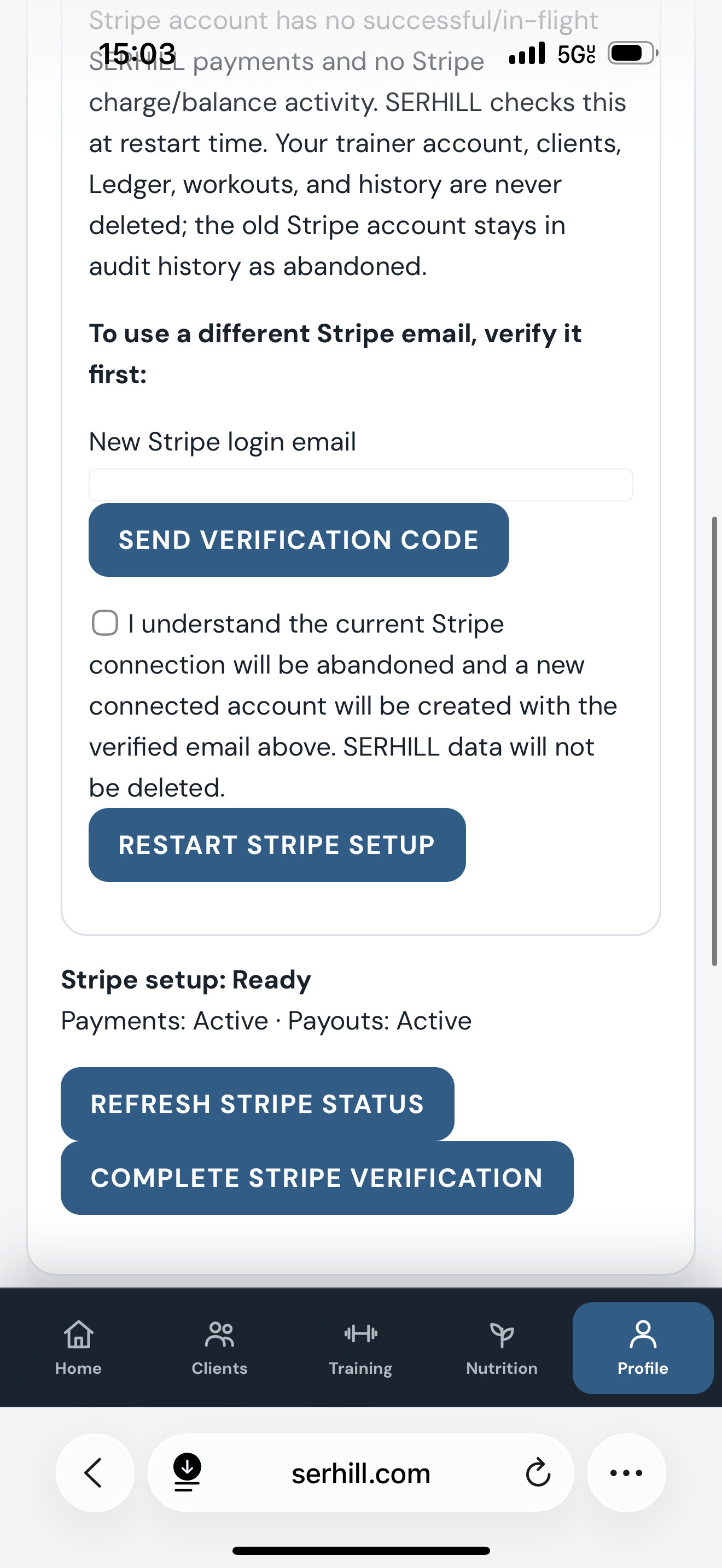
Check for Stripe setup: Ready and both Payments and Payouts: Active. The compact state reads Stripe connected / Payments active · Payouts active.
Ready · Payments Active · Payouts Active. Archived layout; the current view may be more compact.Enlarge screenshot (new tab)
08
Wrong or inaccessible Stripe login email
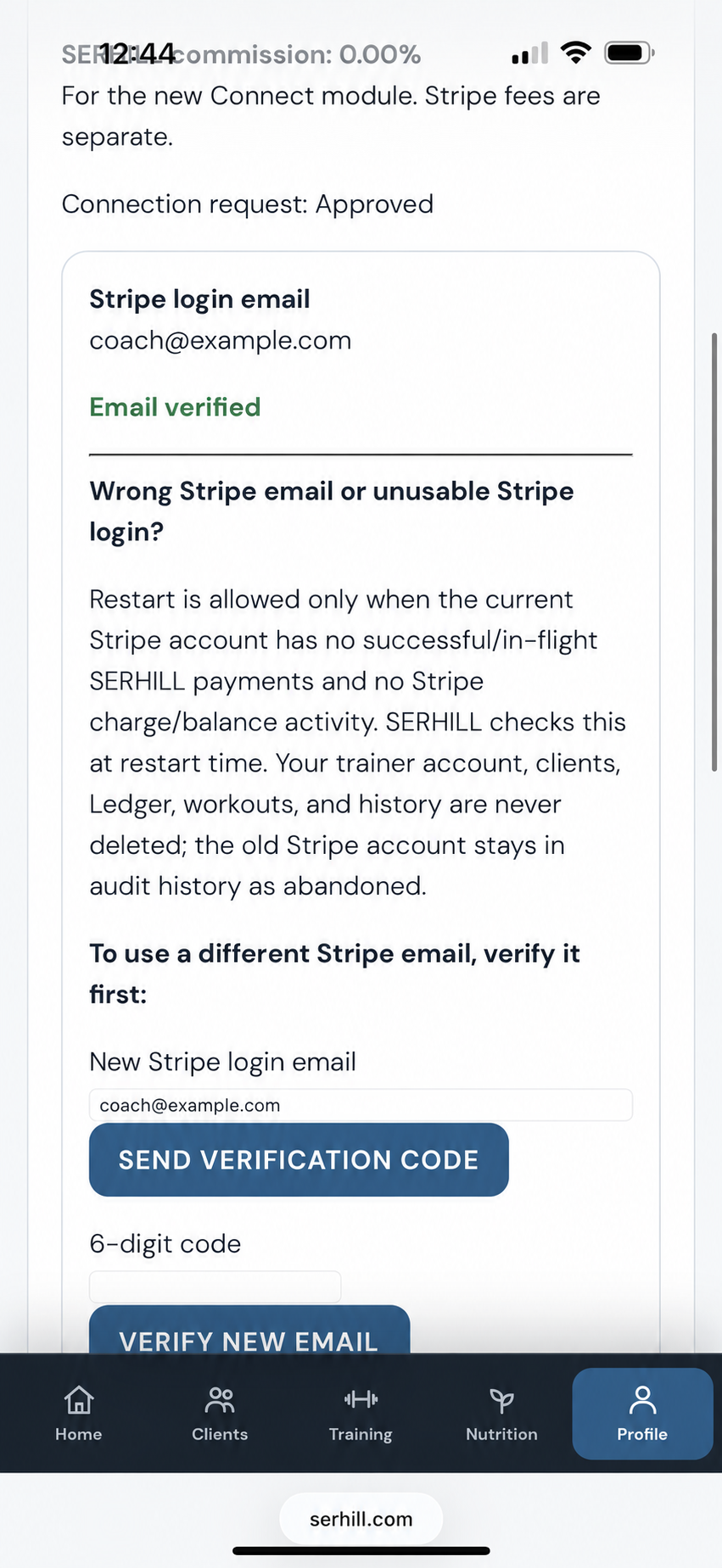
In Payments and Stripe, open Manage Stripe connection → Change Stripe email, or the Wrong Stripe email or unusable Stripe login? section.
Enter an accessible address in New Stripe login email.
Select Send verification code. Check your inbox and spam folder.
Enter the received 6-digit code and select Verify new email. Do not share this code.
Once verified, read the restart acknowledgement. If eligible, accept it and select Restart Stripe setup.
Continue onboarding through Continue to Stripe with the verified email, then check Ready / Active again.
Verify a new email. The verification-code field is intentionally empty.Enlarge screenshot (new tab)
09
If restart is blocked
If payments or a balance already exist, or restart is unavailable, contact SERHILL and recover access to the existing account through Stripe support. Do not create another connection to bypass the restriction.
Changing an email in SERHILL does not itself recover an active Stripe login. If you can still access Stripe, use Stripe settings to change the email; otherwise follow its official recovery process.